Automatic Fog Detection
Owlbear Rodeo 2.4 is out with automatic fog detection, storage saver and more


In our last blog post we went over our new super simple method for aligning maps. In it I mentioned that grid alignment and fog have been my white whale since Owlbear Rodeo started. Just like grid alignment with this new update I think I’ve finally built the best solution to fog.
The goal for our alignment tool was to take what we already had and streamline to make it easier to learn. Our fog tool is already pretty streamlined but no matter how much we improve the usability it will always take a lot of time to trace each room. So to combat this we’re introducing Forecast, a computer vision pipeline that we’ve built exclusively for fogging TTRPG battlemaps. All you need to do is hit the Forecast button in the fog tools and we’ll fog the map for you.
Forecasting a map. Map credit Czepeku
Fixing Fog
Forecast is pretty great but it won’t always get 100% of the way there. It might miss hard to spot rooms or be extra zealous with its sizing. To combat this we’re introducing the Slice tool which allows you to effortlessly fix any mistakes made from Forecast.
In the demo above Forecast missed one of the rooms in the guildhall. With the slice tool we can click on the corner of the adjacent room then click on the wall to the left to create the missing room. Now we can either toggle this room on/off for static fog or use it as is for dynamic fog.
Slicing a room. Map credit Czepeku
To make this process as easy as possible we’ve changed some of the core fog tools as well. Before we had a concept of single layer and multilayer fog, in this update we’ve expanded and clarified this system. You can now pick between four different operations when drawing fog Fit, Trim, Join and Overlay.
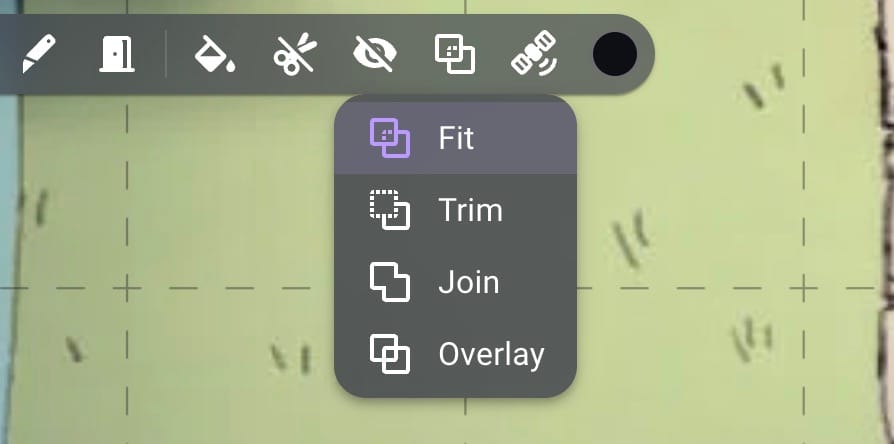
In this system Fit is the single layer mode that allows easy drawing of non-overlapping shapes, this is the default. Overlay is the multi-layer mode that allows overlapping shapes for the rare cases when you need that control. The two new modes Trim and Join allow you to cut away and extend already drawn shapes. This is useful when Forecast misses a small corner and you want to extend it or when the shape is just a little too big and you want to cut it away.
Join and trim fog shapes. Map credit Czepeku
In the video above I’m using the Fit mode but using the Shift/Alt shortcuts to enable the Join and Trim modes temporarily which makes using the tool a lot faster than having to switch modes all the time.
Speaking of saving time in the video above you’ll also see the fog tools snapping to the bounds of the shape. This is another new feature called Shape Snapping which makes it super easy to perfectly align fog shapes. This also works with grid snapping disabled so those of you fogging hand drawn maps won’t need to worry about fog shapes being just that little bit off.
Forecast also works really well on caves and paired with the Dynamic Fog extension you can have a fully prepared map in seconds.
Automatic cave detection. Map credit Mike Schley
To make sure we provide the best experience for all our users Forecast will first be launching in beta to our Bestling users. This will allow us to make sure the feature works on the widest variety of maps while also allowing us to slowly test our servers to make sure we can handle the increased workload needed to run the computer vision required. After the beta period we’re hoping to bring it to as many of you as we can.
While Forecast saves you a bunch of time your storage quota won’t be so happy with all the new maps you can finally run. That would be true if it wasn’t for our next feature.
Storage Saver
Here at Owlbear Rodeo we’re big fans of the WebP file format. While it can be annoying dealing with them on a desktop computer the file savings make them great for the web. Since the beginning of 2.0 we’ve been serving you WebP images if your browser supports it. This makes loading a lot faster, it’s also part of our tiling process to make sure you can use your really big maps without slowdown. But this has always been on the server side. When you upload a 12MB PNG to Owlbear we store that full file and that size is what counts to your storage quota. When users come to us and ask how they can better make use of their storage we always tell them the blessings of WebP but converting every map you use can be quite a pain. So this is what Storage Saver tries to solve.
When you upload an image to Owlbear Rodeo with Storage Saver enabled we’ll convert it to WebP on your browser for you. If the one to one conversion to WebP is still too large we also allow you to resize the image directly in the import window to save even more storage.
Automatic WebP conversion. Map credit Czepeku
If you’ve ever run into the dreaded “Unable to import file resolution is too high” error message Storage Saver will automatically resize your image to the largest supported resolution for you instead of making you do it.
You’ll see the best savings with on large PNG images with transparency but even on JPEGs you can see a ~20% decrease in file size. If Storage Saver won’t save you anything then we’ll upload your original file to make sure there’s no extra conversion artefacts.
What’s Next
We’ve been working on Forecast for such a long time it’s so great to finally get it out there. If you’re a member at the Bestling tier then try out the beta and let us know how it goes. We especially want to know any map that fails so we can improve it as much as we can. We’ve still got a lot more planned for 2026 and beyond so stay tuned!